How to Use GoLove AI: Complete Setup & Usage Guide (2026)
Getting started with GoLove AI takes about five minutes from visiting the site to your first AI conversation. The artificial intelligence companion platform from 404 Intelligence Ltd is accessed entirely through your web browser at goloveai.com — no app download, no software installation, no technical setup.
This guide walks through every step: account creation, age verification, choosing your companion, using chat and multimedia features, and managing your account. Whether you're new to the platform or troubleshooting a specific feature, the instructions here are complete and current as of May 2026.
Getting Started: What You Need Before Signing Up
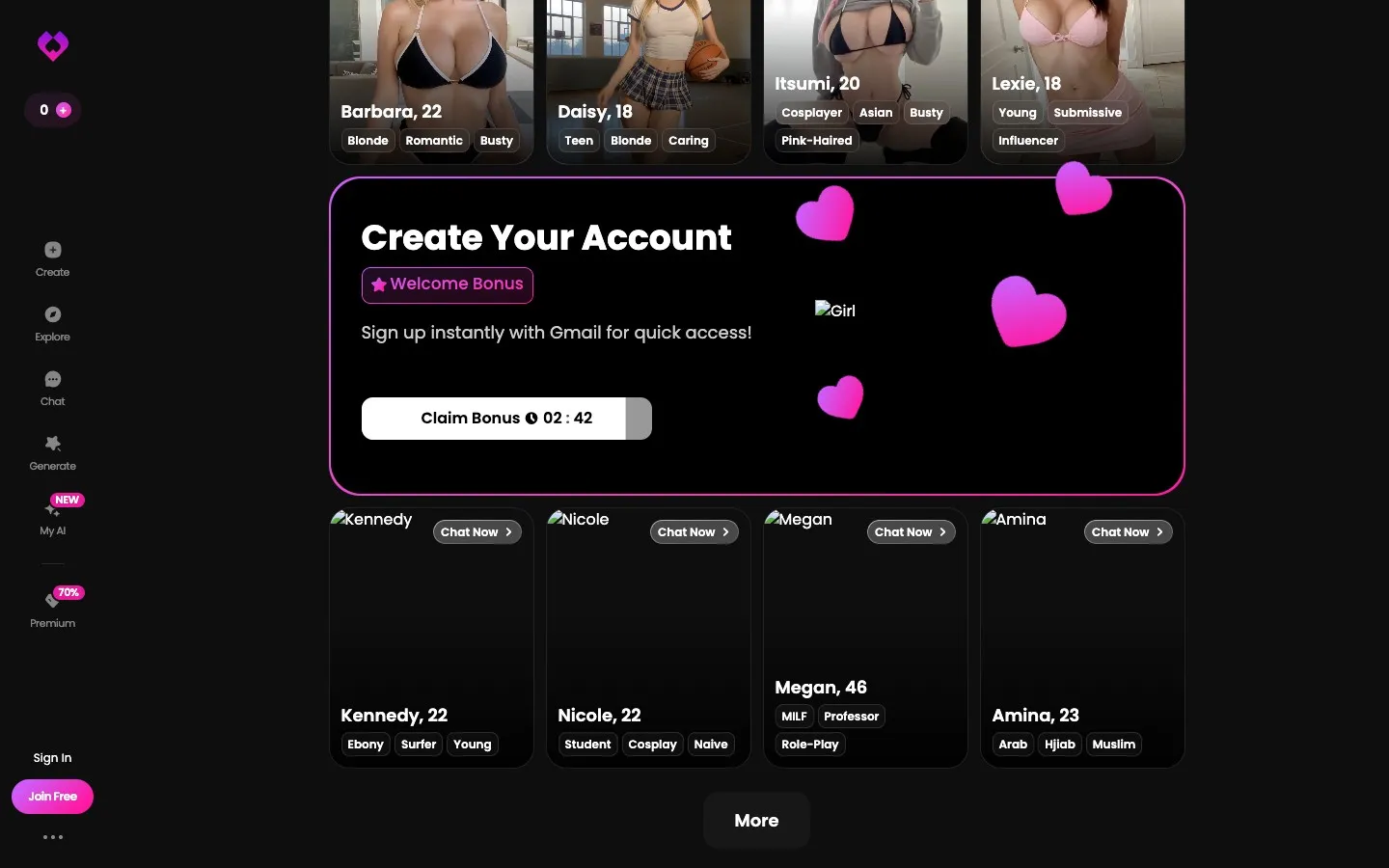
GoLove AI has minimal technical requirements:
- A modern web browser (Chrome, Safari, Firefox, or Edge — mobile or desktop)
- An email address for account creation
- Confirmation that you are 18 years or older (age verification is required)
No credit card is required to create a free account. GoLove AI's free tier is genuinely functional and doesn't require payment information at registration.
The platform is built as a browser-based application — the machine learning and Generative AI processing happens on GoLove AI's servers and streams to your browser. This is why no local installation is needed: all computation runs remotely.
Step-by-Step Setup: From Registration to First Chat
Step 1: Visit goloveai.com
Open your browser and navigate to goloveai.com. You'll land on the homepage featuring the character gallery preview and sign-up options. The site is mobile-optimized — 86% of GoLove AI users access it from mobile browsers, so the layout works well on any screen size.
Step 2: Create Your Account
Click the "Sign Up" button and provide:
- Your email address
- A password (use a strong, unique password for this account)
GoLove AI does not currently require a phone number or social login. Email registration only.
Step 3: Complete Age Verification
After email registration, you'll be directed through an age confirmation step. You must affirm that you are 18 years or older (21+ in some jurisdictions). This gate applies to all users — it's a platform-wide requirement, not just for NSFW content.
Step 4: Browse the Character Gallery
Once your account is active, you'll enter the character gallery — the core matching interface. This works like a mobile dating app:
- Character cards appear showing name, photo, personality tags, and a brief bio
- Swipe right (or tap the heart icon) to match with a companion
- Swipe left (or tap the X) to pass
- Use filters to narrow by personality type or interest category
Take time here. The 84+ companions have genuine personality variation. Finding one whose listed traits and communication style appeal to you has a significant effect on how satisfying ongoing interactions feel.
Step 5: Select a Companion and Start Chatting
After matching, tap the companion's card to open the chat interface. The chatbot AI initializes and sends an opening message immediately. Respond to begin your conversation.
Your first interaction is where the AI starts building your companion's memory of you. Share your name, a preference, or something about yourself — the AI will reference these details in future sessions.
Using Core Features: Chat, Voice, Images, Video
Once you're in an active conversation, these features are available through the chat interface:
Text Chat
Text chat is the default and primary interaction mode. Type your message in the input field and press send. The AI responds in a few seconds. On PRO plans, messaging is unlimited. Free users have a daily message cap.
For roleplay and narrative scenarios, simply introduce the scenario in text — the AI follows conversational cues. NSFW scenarios require PRO subscription and are restricted behind the age-verified PRO gate.
Requesting AI Images
To request an image of your companion: tap the camera or image icon within the chat interface. The AI generates a photo of your companion and delivers it within the chat thread. Each image costs 1 Star.
PRO subscribers receive 10 Stars per month. Free users cannot access image generation. If your Star balance is insufficient, you'll see a prompt to purchase more.
Listening to Voice Messages
Voice messages are activated through the audio icon in the chat. The AI generates a voiced response from your companion and returns an audio file playable within the chat. Each voice message costs 1 Star.
AI Video Generation
Video is generated by tapping the video request option in the chat. Each video costs 10 Stars. Note: there is a known platform behavior where videos can be automatically generated and charged without explicit user action. Monitor your Star balance if you notice unexpected deductions.
Live Video Mode
Live mode is GoLove AI's most distinctive feature. To activate:
- Look for the camera icon in the top-right corner of the chat interface
- Tap or click it
- The live AI video feed activates, showing a real-time generated video of your companion
Live mode renders at lower quality than static images due to the real-time generation requirement. It's a technically novel experience, even at current fidelity levels.
For a deep feature-by-feature breakdown including quality assessments, see the GoLove AI features guide.
Account Management: Login, Subscription, and Cancellation
Logging In
Return to goloveai.com and click "Log In." Enter your registered email and password. GoLove AI does not currently offer social login (Google, Apple) or two-factor authentication. If you forget your password, use the password reset link on the login screen.
Managing Your Subscription
Subscription management is handled within your account settings:
- Click your profile icon or navigate to account settings
- Find the subscription or billing section
- View your current plan, renewal date, and Star balance
- Upgrade from Free to PRO, or change your billing cycle from this section
Canceling Your Account or Subscription
If you want to cancel your subscription, initiate the process at least 5–7 days before your next renewal date. The cancellation flow is in account settings under the subscription section. Screenshot each confirmation screen — there are documented reports of cancellation flows not completing cleanly, and having a paper trail is useful if you need to dispute a charge.
Account deletion is available through settings. Note that GoLove AI retains user data for 6 years after account deletion per their privacy policy.
For mobile-specific guidance including how to add GoLove AI to your home screen for an app-like experience, see the GoLove AI app and mobile access guide. For a complete product assessment, visit the GoLove AI review.
Frequently Asked Questions
Visit goloveai.com, click "Sign Up," enter your email address and create a password, then complete the age verification step confirming you are 18+. No credit card is required for a free account. The entire process takes under two minutes.
Go to goloveai.com and click "Log In." Enter your registered email address and password. If you've forgotten your password, use the password reset link on the login page — GoLove AI will send a reset email to your registered address.
In an active chat conversation, tap the image or camera icon within the chat interface. Confirm the image request. The AI generates a photo of your companion and delivers it in the chat thread. Each image costs 1 Star. You need an active PRO subscription and sufficient Stars in your balance to request images.
Look for the camera icon in the top-right corner of the chat interface. Tap it to activate Live mode. The real-time AI video feed of your companion starts immediately. Live mode runs as long as it's active — tap the icon again to deactivate it.
Navigate back to the character gallery from the main menu or home screen. Match with a new companion by swiping right on their profile. You can maintain active conversations with multiple companions simultaneously — switching between them doesn't delete your existing chat history with previous matches.
Go to account settings within your goloveai.com profile. Find the subscription or billing section and follow the cancellation prompts. Initiate cancellation at least 5–7 days before your renewal date. Screenshot each step for documentation. If cancellation doesn't process successfully, contact GoLove AI's support email, and if issues persist, contact your card issuer to block future charges.
Account deletion (distinct from subscription cancellation) removes your profile but GoLove AI retains user data for 6 years after deletion per their privacy policy. If you want to fully exit the platform, cancel your subscription first, then delete your account. The GoLove AI legitimacy and privacy guide has full details on data retention policy and what happens after account closure.